Does Canvas Track Time Spent on an Assignment?
Short answer: yes, in three different places, and instructors review one of them more than the others. Here's exactly what gets recorded — and the timing patterns that actually flag students.

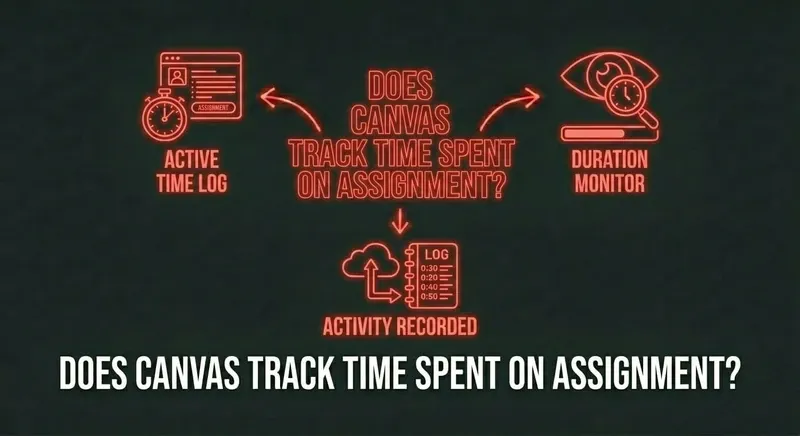
The three places Canvas records time
1. The quiz log (most-used signal)
For Canvas Quizzes and New Quizzes, the per-student log captures timestamps on every event: quiz started, question viewed, question answered, focus lost, focus returned, quiz submitted. Subtraction gives the instructor your time-on-each-question and total-time-on-quiz. This is what gets pulled when academic integrity reviews happen. Detail in our quiz log post.
2. Page Views in Student Analytics
Every time you load a Canvas page — assignment, module, file, syllabus — Canvas writes a row to the per-course Page Views report. The instructor sees: which pages, how many times, and when. This is platform-wide tracking, not just quizzes. The Action Log on the student-side dashboard is the same data, presented differently.
3. Course Analytics aggregates
Canvas computes per-student rollups: page-views-per-week, last-login, on-time-submission-rate, average-time-to-submit-after-due. Instructors view these as charts in their analytics dashboard. They're more about "is this student engaged" than gotcha enforcement, but the data is there.
What instructors actually see
The instructor-facing Student Analytics view typically shows, per student:
- Total page views in the course (your engagement metric).
- Last-active timestamp for the course.
- Submission timeline — every assignment, when you submitted vs. when it was due.
- Per-quiz time-on-quiz — total seconds from start to submit.
- Per-assignment first-view-to-submit gap — how long between opening the assignment and submitting it.
For non-quiz assignments (an essay upload, for example), Canvas doesn't sit there counting seconds while you write. It records when you opened the assignment page and when you submitted. The gap is what's visible.
What does NOT get tracked
- Time spent in another window or app. Canvas only sees its own page. If you opened the assignment and went to make coffee for 20 minutes, Canvas thinks you spent 20 minutes "on the assignment." It can't tell.
- Keystrokes or scrolling. Canvas doesn't capture how fast you typed or where you moved your mouse on a non-quiz page.
- Idle time inside the page. If you're on the page but not moving anything, the platform assumes you're reading. There's no "idle detection" in default Canvas.
- Time spent reading uploaded PDFs in the Files area. Canvas knows you opened the file. After that, the PDF reader is separate.
The timing patterns that actually flag students
Across academic-integrity reviews, three timing patterns trigger investigations more than others:
- Time-on-question that's faster than reading speed. A 200-word question answered correctly in 4 seconds. The student didn't read it. Either they got lucky, or they had the answer ready before opening.
- First-view-to-submit gap that's too short for the work. An essay assignment opened at 11:47 PM and submitted at 11:53 PM with a 600-word polished response. Six minutes is shorter than typing 600 words from scratch.
- Sudden change in pace. A student who took 22 minutes on every previous quiz suddenly takes 4 minutes on the midterm and gets a 96. The pattern jumps off the page.
Notice all three are about too fast, not too slow. Slow doesn't get flagged because it looks like a student struggling. Fast looks like cheating.
Skip the gymnastics.
CourseCheetah surfaces the answer on the question itself, and the Submit Delay setting paces your submissions to look natural. Privacy Guard blocks the focus and visibility events Canvas would log; the timing pattern that's left looks like a focused student's.
How to make timing look normal
- Pace your quiz. If your class average is 22 minutes on a quiz and you finish in 4, that's a flag — even with a clean log. Aim for at least 50% of class-average time.
- Don't open and immediately submit. A first-view-to-submit gap under 2 minutes on anything more than a 5-question quiz looks suspicious. Wait, even if you're done.
- Match your historical pace. If you usually take 30 minutes and suddenly take 6, the change itself is the signal — independent of the score.
- Get a few wrong on hard quizzes. A perfect score on a class-difficulty quiz is itself a soft flag. 92% with two natural-looking misses is invisible.
The bottom line
Canvas absolutely tracks time, in detail, and instructors review it on the assignments and quizzes they care about. The good news: the platform doesn't see what's happening outside its own pages. The fix isn't faster — it's natural. Pace your work to look like the focused-student version of yourself, and the timing data is silent.